CUT-PATHBY OUTPUT COLLECTIVE

Vector Studio

Precision workspace
PROCESSING COREIdle
Untitled artwork/Ready to create
Browser-first processing

Dieline preview

No cutline

ARTWORK / CUTLINE PREVIEWmm
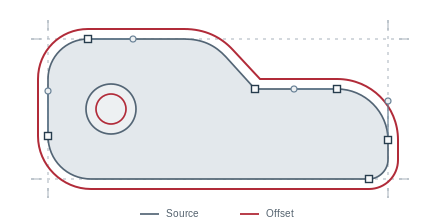
Import your artwork

Import, adjust the offset, smooth, then export.

PNG · JPEG · WebP · SVG · PDF · AI · up to 350 MiB
100%
ArtworkCutlinePinned vertex
Final boundary
LIVEBOUNDARY

Geometry corrections

Select a loop above. Each shape keeps its own setting. Pinned points stay fixed. Offset and simplification stay unchanged.

Generate a cutline to select and correct its geometry.

Ready. Open artwork to begin.
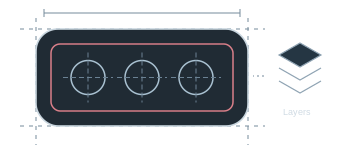
DRAWING WORKSPACE

CAD Extractor

Inspect the source. Organize its layers. Export with a known scale.

No drawing openDXF / PDF · native vector inspection
Drawings are processed temporarily on this service; originals are not stored.

Drawing overview

Source coordinates · 4 decimal display
CAD drawing previewSource geometry is preserved. Export scope defaults to visible included geometry.

Open a DXF or PDF

Inspect native vectors, source layers
and physical scale.

DXF / PDF · up to 350 MiB · PDF pages inspected individually
NATIVE VECTOR GEOMETRYDXF / PDF
X —   Y —
100%
Select an entity · drag empty space to pan · Ctrl/⌘ + scroll to zoom
SELECT & ORGANIZE

Entity inspector

No selection

Select a visible entity or use the list above to inspect its source coordinates.

Ready. Open a DXF or PDF, or explore the sample.
WORKFLOW GUIDE

Artwork to a closed cutline.

The canvas is your source of truth. Inspect the generated boundary before exporting it for production review.

Bring in your artwork

Open, drop or paste an image. Source dimensions load automatically. Images start at 100 mm wide; change the output width if needed. Select the correct PDF page and analysis DPI when importing a PDF. Ordinary SVG/PDF artwork is rasterized for tracing; protected source vectors are retained separately in source-format exports.

Choose how the boundary is found

ContourWeave traces the selected foreground. EdgeSink contracts an enclosing field toward the outline. Hybrid contracts, then simplifies. Loop splitting or hole changes require your explicit approval.

Select and correct geometry

Use Point to drag a vertex or enter millimeter coordinates. Use Edge to select one segment, or Span to select two endpoints on a loop. Vertex numbers provide the same selection from the inspector. Straighten holds both endpoints; Horizontal and Vertical preserve their distance and keep your chosen anchor fixed. Blue highlights the selection; dashed green previews the corrected boundary, including connected edges. Apply keeps the correction as one undoable edit. Escape cancels a preview or selection.

Pins and protected marks stay fixed. Corrections that would create invalid paths are rejected. Save the project to retain applied coordinates; regenerating replaces manual edits. These corrections apply once, without persistent constraints.

Review and export

Apply or cancel any correction preview before saving or exporting. Replay contraction with its timeline. SVG and PDF export closed CUT paths, not print artwork or machine motion code.

Fit artwork FZoom + / −Pan Space + dragVertices NUndo Ctrl/⌘ ZSave project Ctrl/⌘ S

File processing & precision

Source images stay in this browser. Offset and export geometry may be processed temporarily by this app. PDFs are uploaded to this app’s server for rendering and are not retained. A saved project includes your source and geometry. Pixel sampling limits geometric accuracy. Physical-cutter and RIP validation remain required; this development build is not machine certification.

NATIVE VECTOR WORKSPACE

Vector Optimizer

Inspect a large file. Refine native curves. Export a verified copy at its original scale.

PDF/DXF up to 350 MiB; BRG/PLT/XML up to 32 MiB. Your original is retained unchanged.

Original

Candidate

Open a source to begin.

Create a candidate to compare size and geometry.

Measured changes
Processing logs & troubleshooting

Choose a file, then copy or download its log for support. Logs stay in this browser session and contain no source artwork.

Usage policy